
How do I add my teammates?
Open your team page from the captain's link in your registration email, tap Add teammate next to an open spot, and enter their name. Add their email and they get their own link.
You don’t need your whole team to register. Sign up first, then fill in your roster any time before the tournament.
Before you start: find the email you got when you registered. It has your captain’s link to your team page. Only the captain’s link can change the roster.
Add a teammate
- Open your team page. Under Your team, each empty seat shows Open spot.
- Tap Add teammate.
- Enter their name. Email and phone are optional.
- Tap Save.
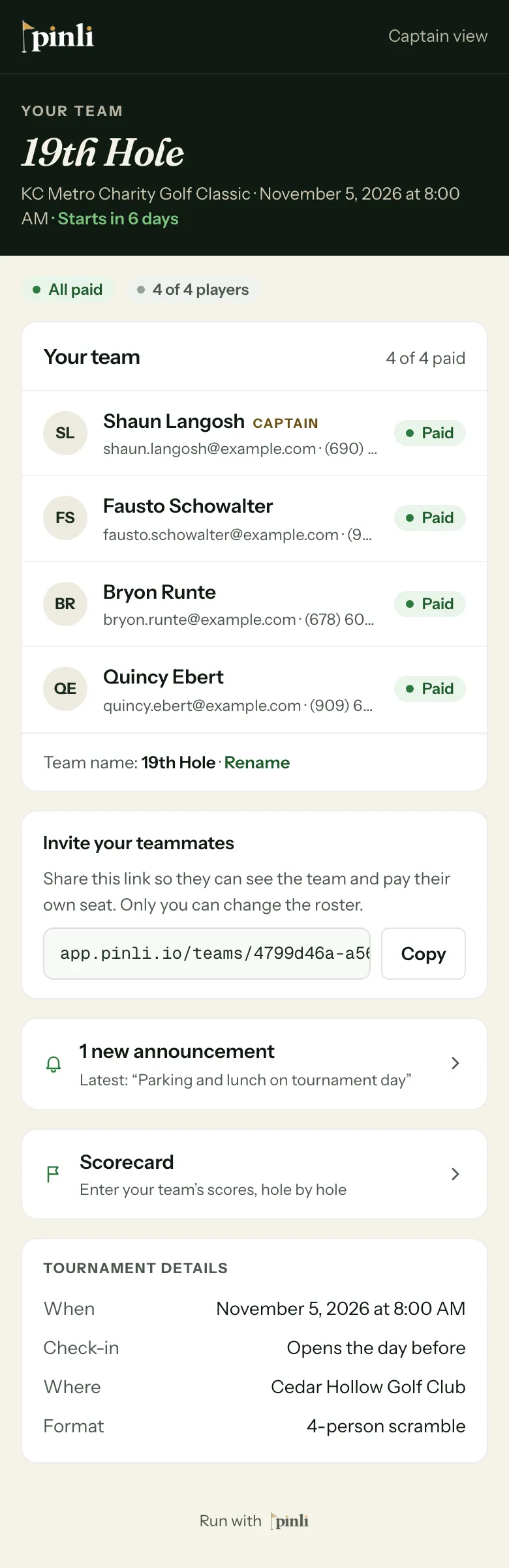
If you add an email, your teammate gets an email with a link to the team page. With it, they can see the team and pay their own seat.
Share the team link
Prefer to text your teammates? Under Invite your teammates, tap Copy and send the link however you like. Anyone with it can see the team and pay, but only you can change the roster.
Don’t share your captain’s link. Whoever has it can change your roster and, on tournament day, enter your scores.
Change or remove a teammate
Tap Edit next to a teammate to change their name, email or phone. To take them off the team, tap Remove player. If they had an email on file, they get a note that they were removed.
You can also rename your team from the bottom of Your team. Tap Rename.
Common questions
Why is there no Edit button next to someone? They’ve paid. Paid players are locked so nobody’s seat changes without them knowing. Ask the organizer to make the change.
It says that email is already registered. Each email can only be on one team per tournament. If your teammate signed up with another team, sort it out with them or the organizer.
Can I make someone else the captain? Not from the team page. Ask the organizer.