
How do I assign starting holes?
Open Starting holes and drag each team onto a hole, or click Fill open spots. Then finalize the start sheet and click Tell captains so each captain learns where they start.
On this page
In a shotgun start, every team starts on its own hole. You place teams on the Starting holes page, lock in the start sheet, and send each captain their hole.
Before you start: set how many teams start on each hole in Settings › Format & rules. Finalizing the start sheet and messaging captains both need an activated tournament.
Place teams on holes
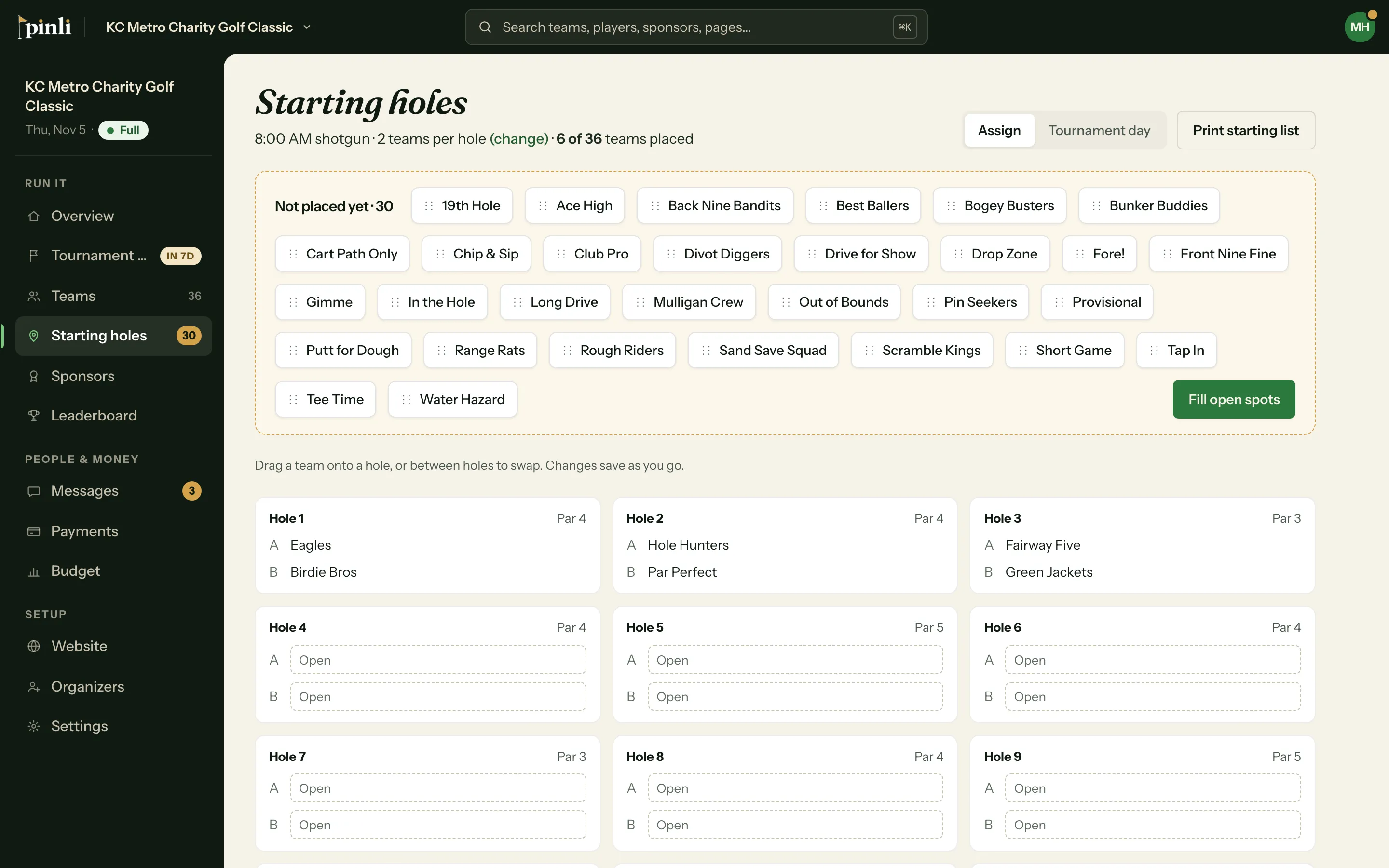
- Open Starting holes in the sidebar. Teams without a hole wait at the top under Not placed yet.
- Drag a team onto a hole. When more than one team starts on a hole, the spots are lettered A, B and so on, so a team might start on hole 7A.
- To swap two teams, drag one onto the other’s spot. To take a team off its hole, drag it back to Not placed yet.
- To place everyone left at once, click Fill open spots. It puts each unplaced team in a random open spot.
Changes save as you go. Dragging works on a tablet or phone too.
Finalize the start sheet
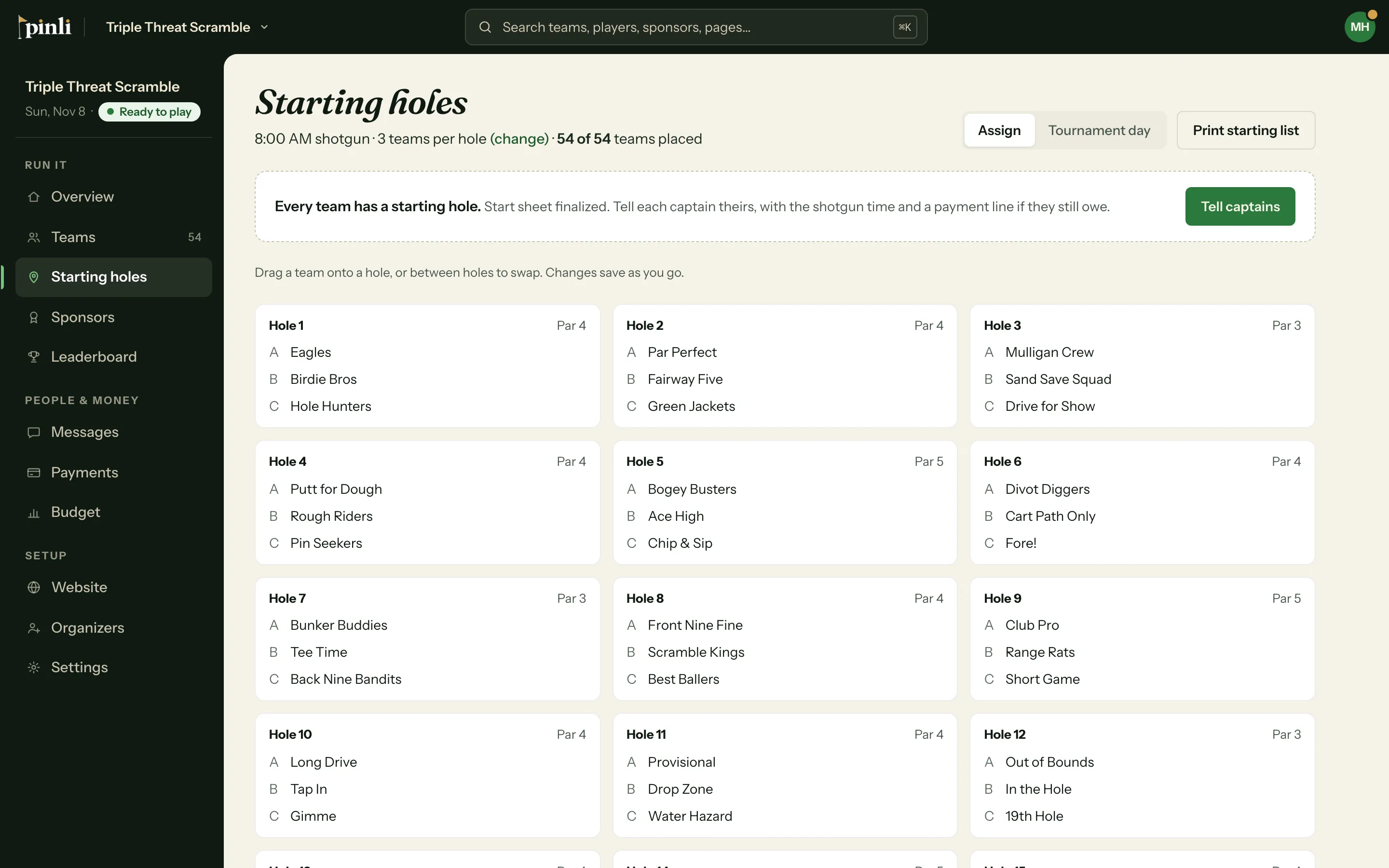
When every team has a hole, the top of the page reads “Every team has a starting hole.” Click Finalize start sheet, then Finalize. This marks the tournament ready to play. The same step shows on the Overview under Needs you.
Finalize start sheet only appears once the field is closed: either it’s full, or you’ve closed registration. To close it early, use Finalize rosters on the Overview. It shows up in the last 10 days before the tournament, and closing registration can’t be undone.
Tell captains their holes
Once every team is placed, a bar on the Starting holes page offers Tell captains. It opens a new message from the starting-holes template: each captain gets their own hole, the shotgun time, and a payment line if their team still owes. Review it and send.
This message goes out once. If you move teams after it’s sent, the bar shows how many teams’ holes changed. Click Send updates and only those captains hear about it.
Change how many teams start on each hole
Next to “teams per hole” at the top of the page, click (change). Teams keep the hole they’re on. If a hole would end up with more teams than the new number, check Unassign teams that don’t fit to continue. Those teams go back to Not placed yet. You can’t change this once results are final.
Common questions
Can I move a team after I finalize the start sheet? Yes. Drag it to a new spot and it saves right away. If you already told captains, click Send updates so the teams that moved find out.
Do reserve teams need a starting hole? No. Only teams in the field appear on the board. A reserve team shows up once it’s given a spot.
Can I print the starting list? Yes. Click Print starting list at the top of the page. See How do I print cart sheets, rosters and results?