
How do I schedule a message?
In the composer, click Schedule…, pick a date and time, and click Schedule send. You can cancel it any time before it goes out.
Write the reminder now, send it the week of. Scheduled messages, drafts and test sends all work from the same composer.
Schedule it
- Go to Messages, click + New message, and write your message.
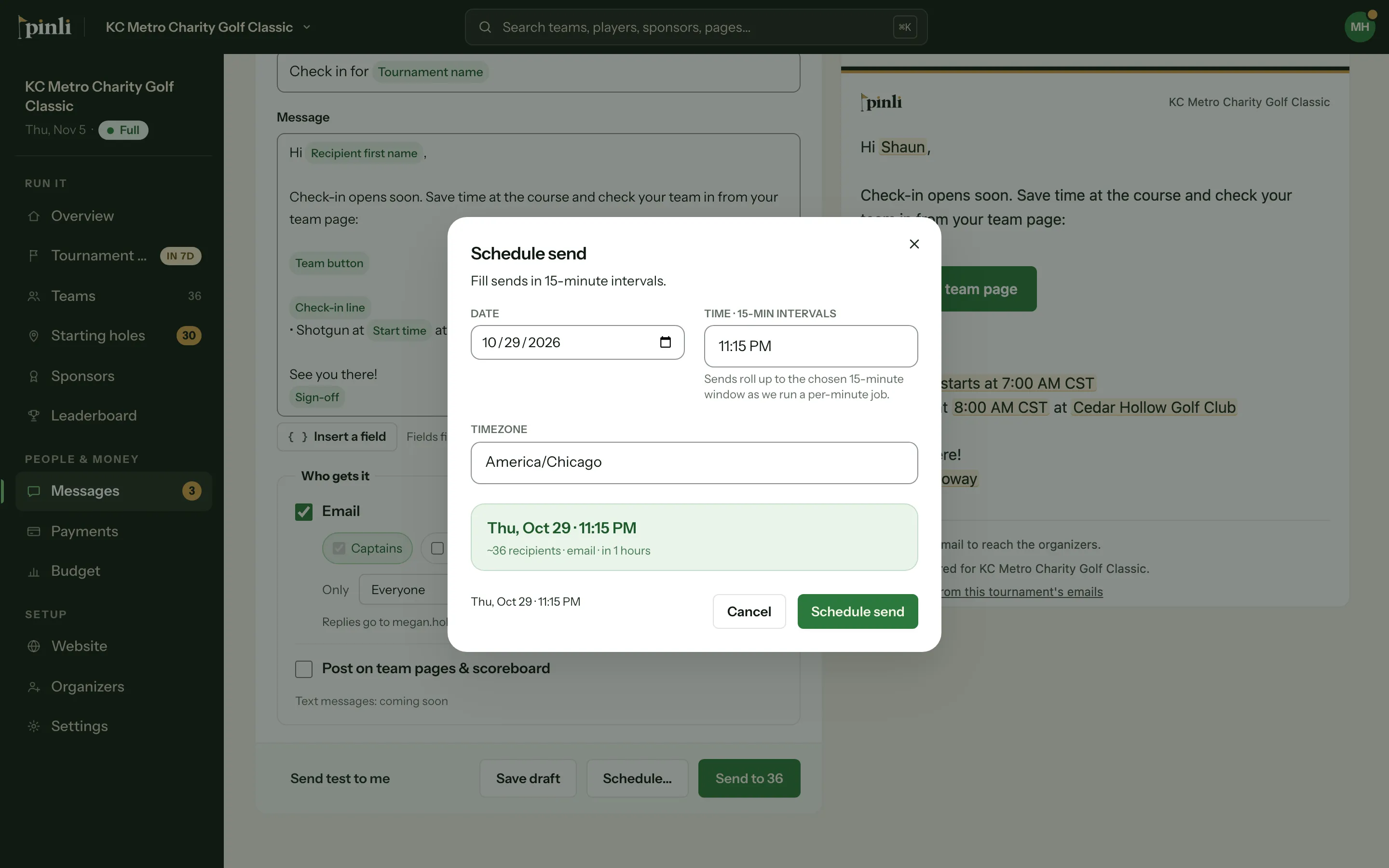
- Click Schedule….
- Pick the Date, the Time (in 15-minute steps) and the Timezone. It starts on your tournament’s timezone.
- Click Schedule send.
The message shows in your list as Scheduled, with the time it goes out. Open it to make changes, or click Cancel this message any time before then.
Save a draft
Not ready yet? Click Save draft. It stays in your list as a Draft until you open it again and send or schedule it.
Send a test to yourself
Click Send test to me to get the email in your own inbox first, with “[Test]” in the subject. Tournament fields fill in for real, and team fields use sample values. Nobody else gets it.
Can I undo a send?
When you click Send, the message waits about a minute before it goes out. A bar at the bottom of the page counts down. Click Undo to stop it.
Common questions
Can I schedule a message during the free trial? No. On a trial you can write messages, save drafts and send tests to yourself. Sending and scheduling unlock when you activate.
What if I change the tournament date after scheduling? A scheduled message still goes out at the time you picked, unless that’s more than 30 days after the tournament. Then it’s cancelled. See Why can’t I send messages anymore?
Can I see who a sent message went to? Yes. Open it from the list. It shows when it was sent, who sent it and how many people got it.