
How do I publish my tournament website?
On the Website page, pick a template, fill in your story and schedule, and click Publish. Your site goes live at your-tournament.pinli.io.
On this page
Every tournament can have its own website, with registration, sponsor sign-up and the live leaderboard built in. There’s no separate tool to learn and nothing to host.
Before you start: it helps to have a sentence or two about your cause, your schedule for the day, and a photo. You can publish without them and add them later.
Build it
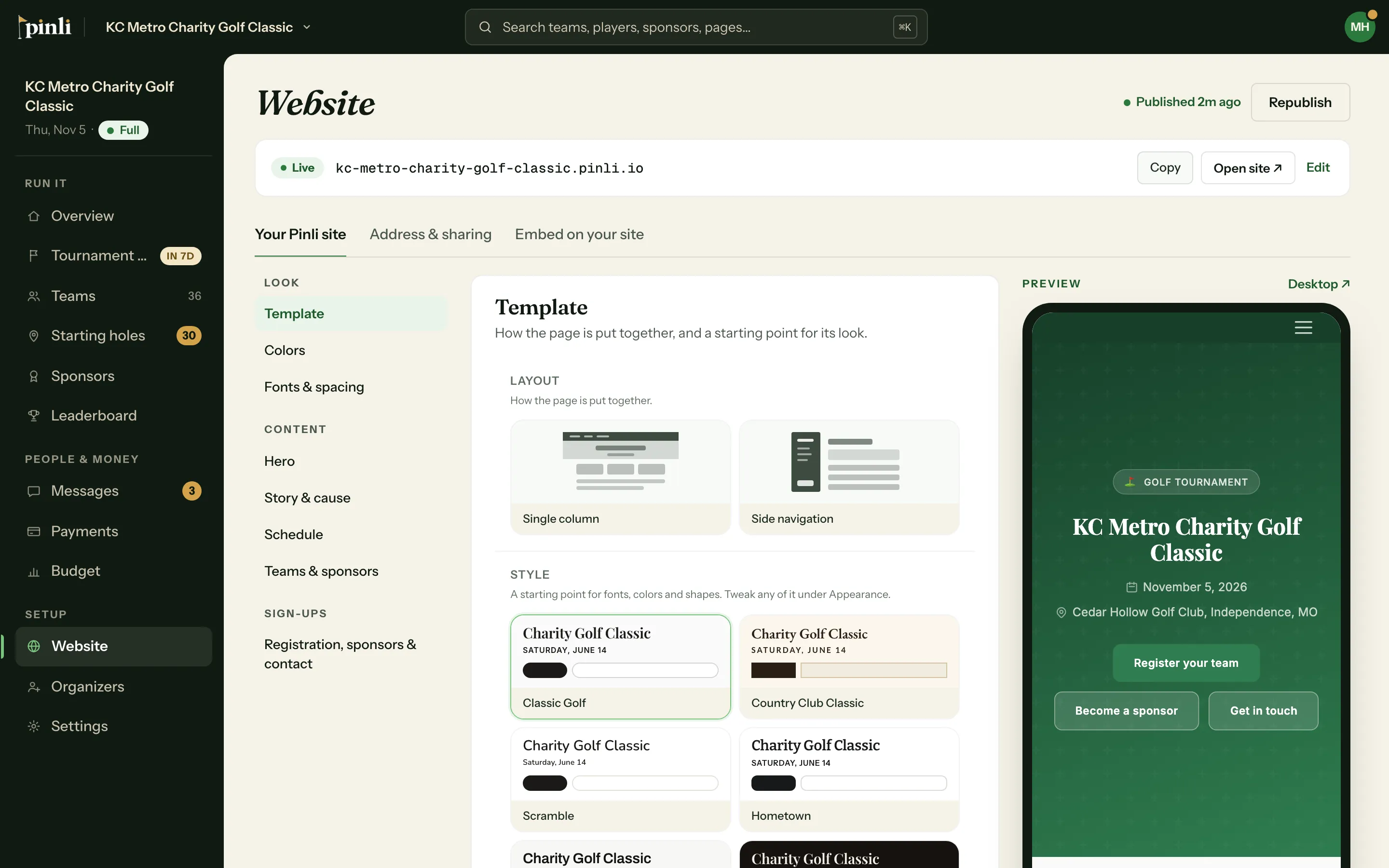
Open your tournament and go to Website. The Your Pinli site tab lists every setting on one page, with a list on the left to jump between sections and a live phone preview on the right. Click Desktop to see the full-size version.
- Look: pick a template (single column or side navigation), then its colors and fonts.
- Content: your hero image and headline, the story behind your cause, the day’s schedule, and teams and sponsors.
- Sign-ups: turn team registration, sponsor sign-up and the contact form on or off.
Changes save as you go.
Publish
Click Publish at the top of the page. Your site is live at the address shown under the page title, like kc-metro-charity-golf-classic.pinli.io. Click Copy to share it.
After that, any edit shows Unpublished changes. Click Republish when you’re ready for people to see it.
Change the address or link preview
The Address & sharing tab lets you change the web address and set the image and text that show when your link is shared in a text or on Facebook.
Already have a website?
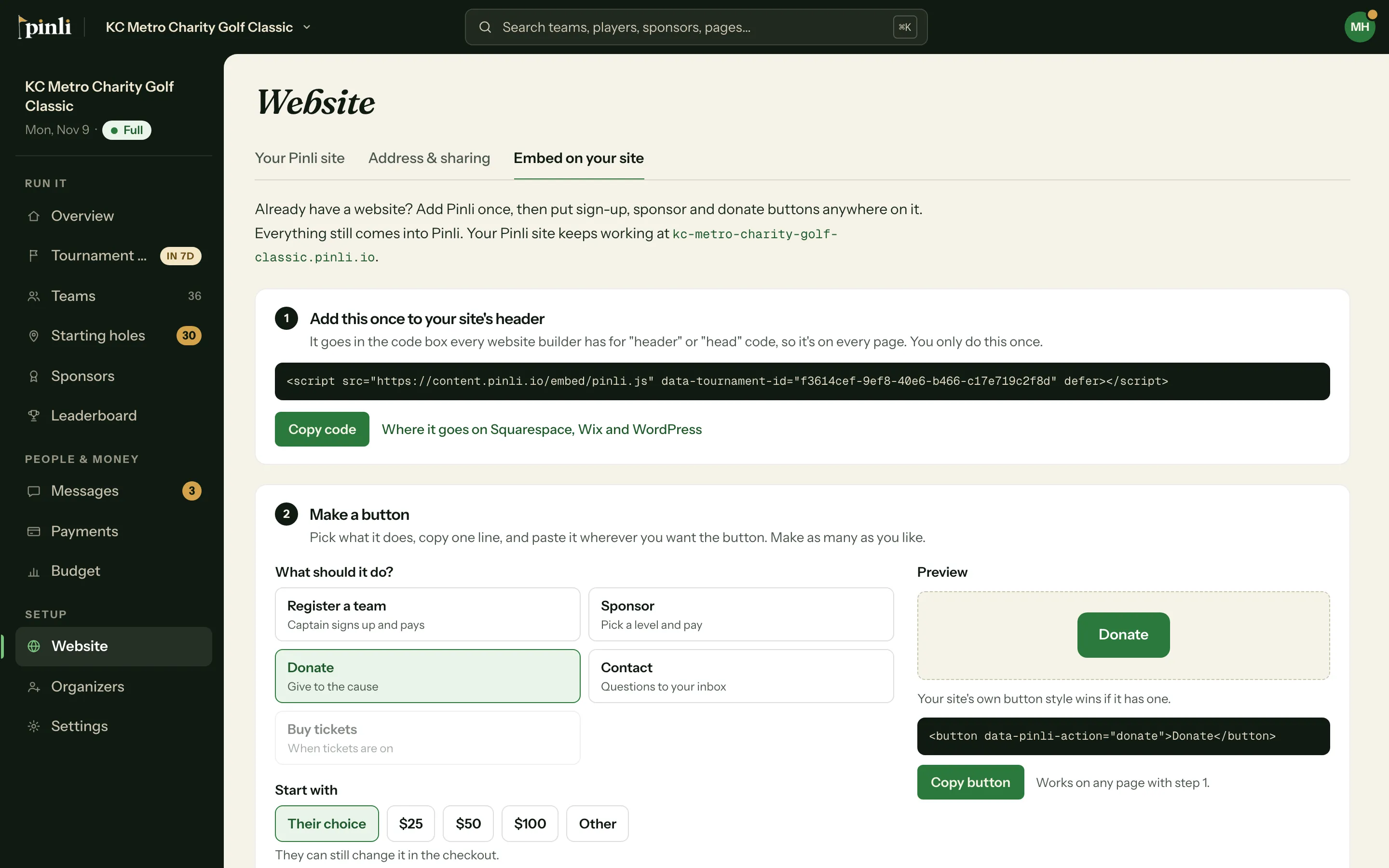
Use the Embed on your site tab instead, or as well. Add one line to your site’s header, then make buttons for team registration, sponsor sign-up, donations, who’s playing, the live leaderboard or a contact form, and paste them anywhere. Everything still comes into Pinli. See how to embed on your site.
Common questions
Can I publish during the free trial? Yes. On a trial your site publishes as a demo for 30 days, with a “Demo site” banner, and it’s hidden from search engines. Activate the tournament and it becomes your site for good, with no banner.
Do I need to republish when teams register? No. Registration, sponsors and the leaderboard update on their own. Republish only after you edit the site itself.
Why does my photo look darker than the original? The top of your page darkens your photo so the white headline is easy to read. Dark is the starting choice on every template. To change it, open Hero in the builder and pick Light, Gradient or None under Darken photo, then republish.
Can I switch templates later? Yes. Pick a new one, check the preview, and republish. Your content carries over.